


 Pro Benefits
 About
About
 Voorwaarden
 Privacy
 Child Safety & Protection
 Meldingen
 Ayrush Global It Services Pvt Ltd
How to Lock Cells in Excel: A Complete Professional Guide
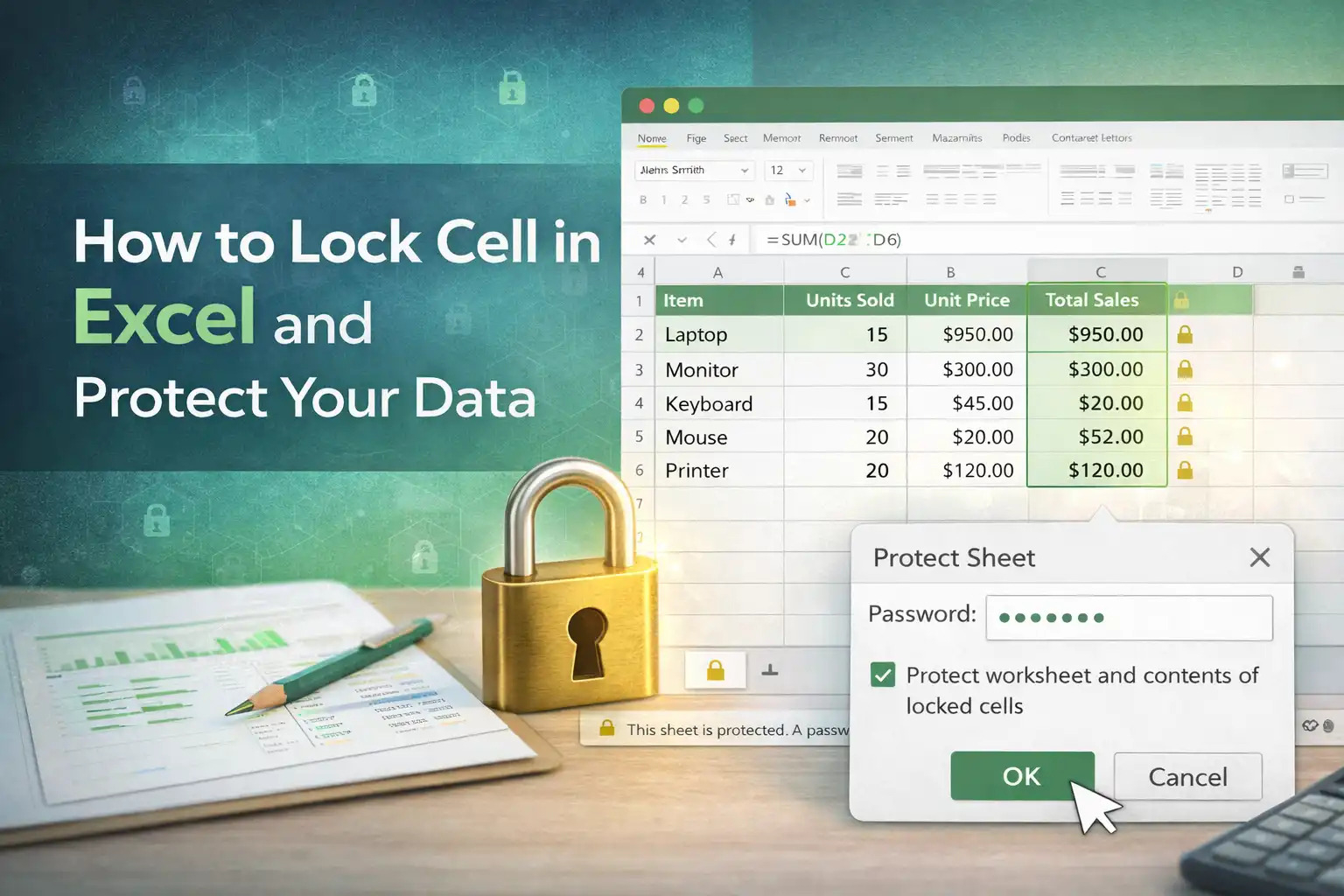
Understanding how to lock cells in Excel is vital if you work with worksheets that contain important formulas, reference data, or structured input areas. Locking cells protects your spreadsheet from accidental edits, ensures consistency, and gives you control over who can change what when sharing or collaborating.
Why Locking Cells Matters
When building Excel sheets for budgets, dashboards, reports, or data entry forms, certain areas must remain untouched to keep calculations accurate. Cell protection prevents accidental deletions or overwrites of formulas, reference figures, or critical values. Without locking cells properly, users can inadvertently break formulas or data structures — which can lead to incorrect outputs and costly errors.
How Excel Cell Locking Works
By default, all cells in an Excel worksheet are marked as locked, but this status has no effect until you turn on sheet protection. The locking feature only becomes active once the sheet is protected. This two-step mechanism — setting lock attributes and then protecting the sheet — gives you fine-grained control over edit permissions.
Step-by-Step: Lock Specific Cells Only
-
Unlock All Cells First:
Select the entire sheet and open the Format Cells dialog (Right-click → Format Cells → Protection tab). Uncheck the Locked box. This step makes only selected areas editable later. -
Select Cells to Lock:
Highlight the specific cells you want to protect, such as formulas or reference data. Open Format Cells → Protection again and check Locked. -
Protect the Worksheet:
Go to the Review tab and click Protect Sheet. Enter a password if desired (optional but recommended) and choose permissions such as allowing selection of unlocked cells or formatting.
When protection is enabled, users will be unable to edit any locked cells unless they unprotect the sheet with the password you set.
Protecting Only Formulas
A very common use case is locking only those cells that contain formulas while letting data entry areas remain open. To do this:
-
First unlock all cells.
-
Use Go To Special → Formulas to select only cells with formulas.
-
Lock those cells, then protect the sheet.
This approach ensures the output of your model stays intact while allowing users to input values where needed.
Options When Protecting a Sheet
Excel’s protection dialog allows you to control user actions on a protected sheet, such as:
-
Allowing selection of unlocked cells only
-
Allowing sorting or filtering
-
Allowing formatting changes
Setting these permissions helps you balance protection with usability — so users can interact with your sheet in meaningful ways without putting locked data at risk.
Using Password Protection Wisely
Adding a password makes it harder for others to remove protection accidentally or maliciously. However, Excel’s sheet protection is not strong encryption — it’s primarily deterrent and safety for accidental edits. Always store passwords securely because if lost, unprotecting the sheet can become difficult.
Best Practices for Locking Cells
-
Clearly label which cells are editable and which are locked to avoid confusion.
-
Reserve locking for data that impacts calculations or structural logic.
-
Regularly update and refine protection settings as your spreadsheet evolves.
-
Test your locked sheet with a colleague or on another system to make sure protections work as expected.
Conclusion
Mastering how to lock cells in Excel elevates your spreadsheet accuracy and reliability. Whether you’re preparing reports, financial models, data entry forms, or shared team documents, cell protection preserves integrity and prevents costly errors. By combining selective locking with thoughtful sheet protection settings, you ensure your Excel workbooks are robust, user-friendly, and professional.
 Dutch
Dutch
 English
 Arabic
 French
 Spanish
 Portuguese
 Deutsch
 Turkish
 Italiano
 Russian
 Romaian
 Portuguese (Brazil)
 Greek
Greek
