


 Pro Benefits
 About
About
 Termeni
 Confidențialitate
 Child Safety & Protection
 Notificări
 Ayrush Global It Services Pvt Ltd
How to Use Netflix 4K on PTCL Flash Fiber with Smart TV
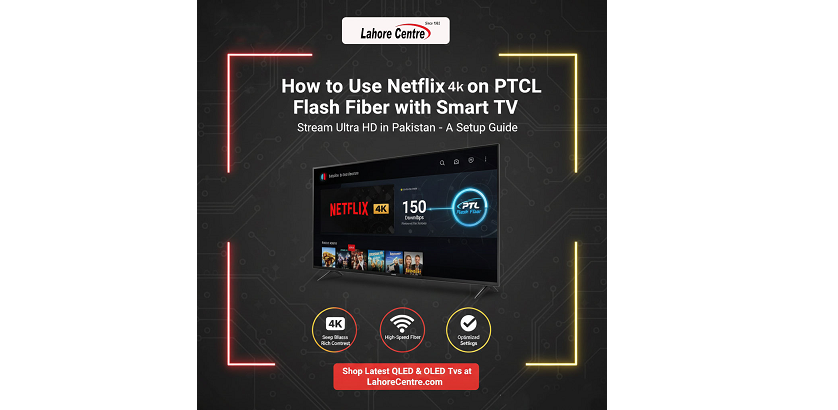
Master Netflix 4K on PTCL Flash Fiber with our 2026 guide! Optimize your Smart TV setup and connectivity with tips from Lahore Centre for the ultimate view.
Using Netflix 4K on PTCL Flash Fiber with Smart TV
In 2026, the home entertainment landscape in Pakistan has evolved to demand the highest quality possible. With the rapid expansion of fiber-to-the-home (FTTH) technology, users are no longer satisfied with standard definition. Streaming Netflix in Ultra HD (4K) has become a top priority for families who have invested in a high-quality Smart LED TV. However, achieving that perfect, buffer-free 4K stream requires a combination of high-speed internet, compatible hardware, and the right settings. PTCL Flash Fiber provides the robust backbone needed for such demanding data loads, but knowing how to optimize this connection on your specific television brand is key to unlocking the full potential of your subscription. At Lahore Centre, we believe that a great screen is only half the battle; the other half is the connectivity that brings it to life.
The Requirements for 4K Streaming in 2026
Before diving into the setup, it is essential to understand what is needed to trigger that "Ultra HD" badge on your Netflix app. First and foremost, you must have a Netflix Premium plan, as the standard and basic plans often limit resolution to 1080p or lower. Secondly, your internet speed is critical. While Netflix officially recommends a steady 15 Mbps for 4K, in the real-world conditions of 2026, a 30 Mbps or higher PTCL Flash Fiber connection is highly recommended to account for other devices in the home. Finally, your LED TV must support 60Hz 4K playback and HEVC decoding. Most modern sets available today are equipped with these specs, but checking your manual or system settings is a good first step to ensure your hardware isn't a bottleneck.
Optimizing PTCL Flash Fiber for Your Smart TV
The way your TV connects to the internet is the most common reason for 4K streaming issues. Even with a 100 Mbps Flash Fiber plan, a weak Wi-Fi signal can drop your actual speed to single digits. For the best experience, we always recommend a wired Ethernet connection. If you cannot run a cable, ensure your TV is connected to the 5GHz band of your PTCL router rather than the 2.4GHz band. The 5GHz frequency offers much higher data throughput, which is vital for the heavy bitrates of 4K content. Additionally, check your Led price and specifications to see if your model includes a high-speed Wi-Fi 6 card, which can handle the dense traffic of 2026's smart homes even more efficiently.
Setting Up Netflix 4K on Samsung Smart LED TVs
Samsung remains a favorite for streaming enthusiasts due to its vibrant panels and optimized Tizen OS. To get started, ensure your Samsung LED TV is running the latest firmware update. Navigate to the Smart Hub, open the Netflix app, and go to the "Get Help" section to run a network test. This built-in tool will tell you exactly what speed the Netflix servers are receiving. On a Samsung Smart LED, you should also enable "HDMI UHD Color" or "Input Signal Plus" in the external device manager settings if you are using an external streaming box like a PTCL Shoq TV Pro, as this allows the TV to accept the full 10-bit color signal required for HDR and 4K.
Configuring LG Smart LED TVs for Ultra HD
LG's WebOS is famous for its "Magic Remote" and ease of use, but its settings can be deep. When using an LG LED TV, make sure to enable "HDMI Ultra HD Deep Color" in the Picture settings for the port your internet or box is connected to. Within the Netflix app on your LG smart LED, you can often press the "Info" button on certain remotes to see a real-time bitrate counter. If you see the resolution hovering at 1080p, check your Netflix account settings on a browser and ensure that "Playback Settings" is set to "High." This forces the app to prioritize quality over data saving, which is perfectly fine when you are on an unlimited Flash Fiber plan.
4K Streaming Tips for TCL Smart LED TVs
TCL has become a powerhouse in the Pakistani market by offering high-end features like 4K and HDR at accessible prices. Most modern TCL LED TV models run on the Google TV platform. To ensure smooth 4K playback, go to the "Apps" menu and clear the cache of the Netflix app regularly. If you are using a TCL Android LED, you can also download "Speedtest by Ookla" from the Play Store to verify that your TV is actually getting the speeds your PTCL router is promising. A TCL Smart LED is an excellent choice for 4K streaming, but it relies heavily on a clean, updated OS to prevent the app from lagging during high-bitrate scenes.
Haier Smart LED TVs: Ensuring Stability in 4K
Haier is another household name that has embraced 4K technology fully. When setting up Netflix on a Haier LED TV, it's important to use the 5.0 GHz Wi-Fi band for stability. Haier's Google TV interface is quite intuitive, but because these TVs often feature high-brightness panels, you should ensure that the "Energy Saving" mode is turned off when watching 4K HDR content. This prevents the TV from dimming the backlight, which can make 4K movies look dull. For those with a Dawlance LED TV, similar rules apply: prioritize a direct connection and ensure your Netflix profile is set to "High" data usage to get the crispest image possible.
Troubleshooting Common 4K Buffering Issues
If you have a fast PTCL connection but are still seeing "low quality" or buffering icons, the issue might be your DNS settings. Sometimes, switching your TV’s DNS to Google’s (8.8.8.8) or Cloudflare’s (1.1.1.1) in the network settings can significantly improve the connection to global Netflix servers. Furthermore, ensure that no other heavy downloads (like PlayStation updates or large file transfers) are running on the same network while you are trying to watch a 4K movie. PTCL Flash Fiber is powerful, but 4K streaming is one of the most data-intensive tasks a home network can perform, and minimizing "network noise" will lead to a much smoother experience.
Conclusion: The Ultimate Viewing Setup
Streaming Netflix in 4K on a PTCL Flash Fiber connection is the gold standard for home cinema in Pakistan today. By ensuring your Smart TV is updated, correctly connected via Ethernet or 5GHz Wi-Fi, and configured with the right account settings, you can enjoy a level of detail that was unimaginable just a few years ago. Whether you are watching on a premium Samsung or a value-packed TCL, the combination of high-speed fiber and Ultra HD content transforms your living room into a private theater. Visit Lahore Centre to see these technologies in action and find the perfect screen to start your 4K journey.
Frequently Asked Questions (FAQs)
Q1: Why does Netflix only show "HD" and not "4K" or "Ultra HD" on my TV? This usually means one of three things: you don't have the Netflix Premium plan, your TV doesn't support 4K, or your current internet speed isn't fast enough to trigger the 4K stream.
Q2: Can I pay for Netflix through my PTCL bill? Yes, PTCL offers a partnership that allows you to add your Netflix subscription to your monthly Flash Fiber or broadband bill, making it easy to manage your payments without a credit card.
Q3: Is Wi-Fi enough for 4K streaming on PTCL Flash Fiber? While 5GHz Wi-Fi is often fast enough, a wired Ethernet cable is always the most reliable way to prevent buffering, especially for the high bitrates required by 4K and HDR content.
Q4: How do I check if my PTCL speed is actually reaching my TV? Most Smart TVs allow you to download a Speedtest app from their app store, or you can use the built-in "Check your Network" tool within the Netflix app's "Get Help" menu.
Q5: Will 4K streaming use up my monthly data limit? Most PTCL Flash Fiber plans are unlimited, but if you are on a capped plan, be careful: 4K streaming can consume up to 7GB of data per hour.

 English
 Arabic
 French
 Spanish
 Portuguese
 Deutsch
 Turkish
 Dutch
Dutch
 Italiano
 Russian
 Portuguese (Brazil)
 Greek
Greek
