Solid State Drives (SSDs) have become the preferred storage solution for modern computers because they deliver exceptional speed, improved reliability, and lower power consumption than traditional hard drives. However, even the most advanced SSD has a limited lifespan due to the wear of its flash memory cells over time. Knowing How to Check SSD Health can help you identify potential issues early, maintain peak performance, and avoid unexpected data loss.
In this guide, you'll learn simple methods to monitor SSD health, understand drive performance, and keep your storage running smoothly for years.
Why Monitoring SSD Health Is Important
Unlike mechanical hard drives, SSDs use NAND flash memory to store data. Every time data is written and erased, the memory cells experience a small amount of wear. Although modern SSDs are designed to last for many years, regular monitoring ensures you know the condition of your drive before problems occur.
Benefits of monitoring your SSD include:
- Detecting hardware issues early
- Preventing sudden drive failure
- Maintaining fast read and write speeds
- Protecting important files
- Planning timely drive replacements
Making SSD health checks part of your regular computer maintenance can save both time and valuable data.
What Does SSD Health Mean?
SSD health refers to the overall condition and remaining lifespan of the drive. Manufacturers use SMART (Self-Monitoring, Analysis, and Reporting Technology) to monitor various performance and reliability indicators.
Important health metrics include:
- Remaining lifespan
- Total bytes written (TBW)
- Drive temperature
- Read and write error counts
- Power-on hours
- Available spare blocks
These values help determine whether your SSD is operating normally or beginning to wear out.
How to Check SSD Health in Windows
Windows provides several built-in tools that allow users to perform a basic health check without installing additional software.
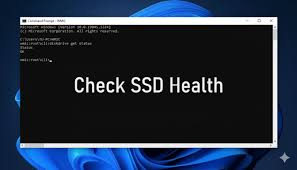
Use Command Prompt
One of the quickest ways to perform a simple drive status check is through Command Prompt.
Steps:
- Press Windows + S.
- Search for Command Prompt.
- Run it as Administrator.
- Enter the following command:
If the result displays OK, Windows has not detected any major hardware issues.
Although useful, this method only provides a general status and not detailed wear information.
Use Windows PowerShell
PowerShell offers slightly more information about installed storage devices.
Run this command:
It displays:
- Health status
- Operational status
- Media type
While helpful, PowerShell still lacks detailed SSD lifespan information.
Best Software to Monitor SSD Performance
Third-party utilities provide much more detailed insights into your SSD's health and overall performance.
CrystalDiskInfo
CrystalDiskInfo is one of the most trusted free SSD monitoring tools.
It displays:
- Health percentage
- Drive temperature
- SMART attributes
- Firmware version
- Total host writes
- Power-on hours
Its easy-to-read interface makes it suitable for both beginners and advanced users.
Samsung Magician
Samsung SSD owners can use Samsung Magician to:
- Monitor health
- Benchmark speed
- Update firmware
- Optimize drive settings
- View remaining lifespan
Crucial Storage Executive
Crucial provides its own utility for monitoring:
- SSD health
- Firmware updates
- Storage usage
- Performance optimization
Western Digital Dashboard
Western Digital SSD users can monitor:
- SMART values
- Temperature
- Firmware
- Performance statistics
Manufacturer software usually provides the most accurate information for compatible SSD models.
How to Check SSD Health Using SMART Data
SMART technology continuously monitors your SSD and records important diagnostic information.
When learning How to Check SSD Health, understanding SMART data is extremely valuable because it provides early warning signs before hardware failure occurs.
SMART monitors:
- Remaining drive life
- Reallocated blocks
- Read errors
- Write errors
- Power cycles
- Operating temperature
- Total data written
Most SSD monitoring applications automatically interpret these values and display them in an easy-to-understand format.
How to Monitor SSD Performance
Health is only one part of SSD maintenance. Performance monitoring ensures your drive continues operating efficiently.
Benchmark Read and Write Speeds
Benchmark software measures how quickly your SSD reads and writes data.
Popular tools include:
- CrystalDiskMark
- AS SSD Benchmark
- ATTO Disk Benchmark
Comparing benchmark results over time helps identify performance degradation.
Monitor Temperature
Excessive heat can reduce SSD lifespan.
General temperature guidelines:
- Below 50°C — Excellent
- 50–70°C — Normal
- Above 70°C — Improve cooling
Most monitoring software displays real-time drive temperatures.
Keep Free Storage Available
An SSD performs best when some storage space remains unused.
Maintaining at least 10–20% free capacity helps improve performance and supports efficient wear leveling.
Common Signs Your SSD Is Wearing Out
Even reliable SSDs eventually show signs of aging.
Watch for symptoms such as:
Slower Performance
Programs take longer to load, and file transfers become noticeably slower.
Frequent Freezing
Unexpected crashes or system freezes may indicate storage problems.
File Corruption
Files become unreadable or fail to save correctly.
Read-Only Mode
Some SSDs automatically enter read-only mode when severe wear is detected to protect stored data.
SMART Health Warnings
Monitoring software may display caution or critical alerts that should not be ignored.
Tips to Extend SSD Lifespan
Good maintenance habits can significantly increase SSD longevity.
Enable TRIM
TRIM allows Windows to manage deleted data efficiently, reducing unnecessary write operations.
Update Firmware
Manufacturers release firmware updates that improve stability, compatibility, and reliability.
Avoid Filling the Drive Completely
Leaving free storage space improves performance and reduces write amplification.
Reduce Unnecessary Writes
Avoid excessive benchmarking and continuous large file transfers whenever possible.
Maintain Proper Cooling
Good airflow prevents overheating, especially for high-performance NVMe SSDs.
How Often Should You Monitor SSD Health?
For most home users, checking SSD health once each month is sufficient.
More frequent monitoring is recommended if:
- The SSD is older than five years.
- You perform heavy video editing.
- You frequently transfer large files.
- The drive stores critical business data.
- Previous SMART warnings have appeared.
Regular monitoring provides enough time to back up important files before any serious failure occurs.
When Should You Replace an SSD?
You should consider replacing your SSD when:
- Health falls below approximately 10–20%.
- SMART reports critical warnings.
- Performance drops significantly.
- Frequent file corruption occurs.
- Manufacturer software recommends replacement.
Replacing the drive before complete failure helps prevent unexpected downtime and protects valuable data.
Conclusion
Learning How to Check SSD Health is an essential part of maintaining a reliable and high-performing computer. By regularly monitoring SMART data, checking drive performance, and using trusted diagnostic software, you can detect wear early and take preventive action before problems become serious.
A few minutes spent checking your SSD each month can significantly extend its usable life, improve overall system performance, and reduce the risk of unexpected data loss. Whether you're a casual user or a professional, making SSD health monitoring part of your routine ensures your storage remains fast, dependable, and ready for everyday tasks.



 Pro Benefits
 About
About
 Términos
 Privacidad
 Child Safety & Protection
 Notificaciones
 Ayrush Global It Services Pvt Ltd
 Spanish

 English
 Arabic
 French
 Portuguese
 Deutsch
 Turkish
 Dutch
Dutch
 Italiano
 Russian
 Romaian
 Portuguese (Brazil)
 Greek
Greek