


 Pro Benefits
 Σχετικά
 Όρους
Όρους
 Ιδιωτικότητα
 Child Safety & Protection
 Ειδοποιήσεις
 Ayrush Global It Services Pvt Ltd
Mastering Excel Filter: Tips and Tricks You Didn’t Know
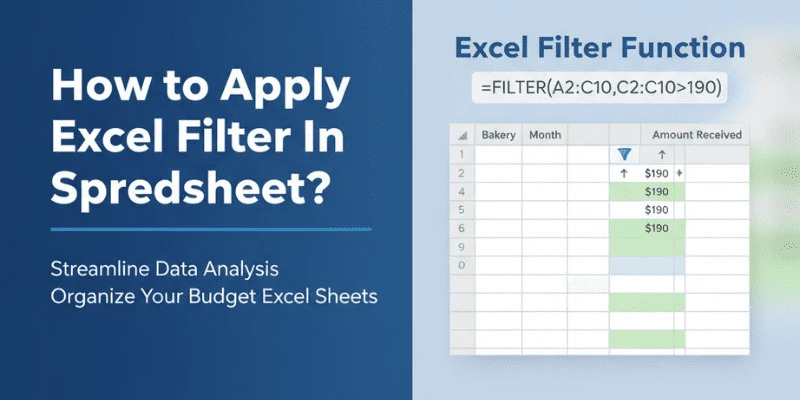
Introduction: Why Excel Filter Is a Game-Changer
If you’ve ever stared at a massive budget Excel spreadsheet wondering how to make sense of all the numbers, you know the struggle of sifting through endless rows and columns. Enter the Excel filter a tool that can transform chaotic data into clean, actionable insights.
As someone exploring a career in IT, mastering Excel functions and formulas is like learning the backbone of problem-solving. From organizing client data to streamlining reports, filtered Excel sheets can save hours of manual work. In this article, we’ll explore lesser-known tips, Excel filter formulas, and practical tricks that make your life easier.
1. Understanding the Basics of Excel Filter
Before diving into advanced techniques, it’s essential to understand the Excel filter function. At its core, the filter allows you to hide irrelevant data and focus on what matters.
For example, in a budget Excel spreadsheet, you might only want to see expenses over a certain amount or transactions from a specific department. Using the built-in filter ensures you don’t have to scroll endlessly, making data analysis from Excel smoother and more efficient.
Tip: Always format your data as a table (Excel format) before applying filters. It prevents errors when your dataset grows and automatically includes new entries in the filter.
2. Using Advanced Excel Filter Formulas
Did you know you can combine the Excel filter formula with other functions like SORT, UNIQUE, or IF to create dynamic, interactive sheets?
For instance, to extract all sales above $1,000 in a sales report:
=FILTER(A2:C100, C2:C100>1000, "No results")This formula instantly shows only relevant data, which is a lifesaver for busy analysts. The beauty of filter formula Excel lies in its adaptability you can tweak conditions for dates, categories, or text values, making Excel solving much faster and precise.
3. Combining Multiple Criteria
Most people stop at basic filtering, but the real magic happens when you apply multiple conditions. For example, in a budget Excel spreadsheet, you might want to see only expenses above $500 from a specific department during a particular month.
Using the AND or OR operators inside your Excel filter formula allows you to layer criteria without creating multiple temporary sheets. This approach not only saves time but also keeps your spreadsheet organized and readable.
4. Tips for Efficient Data Analysis
1. Use Named Ranges: Assign names to ranges you frequently filter. This simplifies formulas and makes your sheets easier to maintain.
2. Leverage Conditional Formatting: Highlight filtered rows automatically for quick insights.
3. Keep Filters Dynamic: When your dataset grows, using Excel filter formulas instead of manual filters ensures your analysis stays accurate.
4. Practice Regularly: The more you experiment with xls filter and Excel functions and formulas, the more intuitive they become like learning a new programming skill.
5. Common Mistakes to Avoid
Even seasoned users sometimes stumble with Excel filter:
· Forgetting to format data as a table before filtering.
· Using static ranges instead of dynamic formulas, which can miss new data.
· Applying too many manual filters without documenting criteria, leading to confusion.
Avoiding these pitfalls ensures your filtered Excel sheets remain reliable and professional.
Conclusion: Take Your Excel Skills to the Next Level
Mastering Excel filter isn’t just about hiding rows it’s about improving efficiency, accuracy, and analytical insight. By understanding formulas, combining multiple criteria, and applying smart Excel functions and formulas, you can turn any messy spreadsheet into a powerful tool for data analysis from Excel.
Think of it as building a foundation for your IT career. The better you get at Excel solving and xls filter techniques today, the faster you’ll handle complex datasets tomorrow. Start experimenting, and soon, filtering your way through Excel will feel second nature.
 Greek
Greek
 English
 Arabic
 French
 Spanish
 Portuguese
 Deutsch
 Turkish
 Dutch
Dutch
 Italiano
 Russian
 Romaian
 Portuguese (Brazil)
